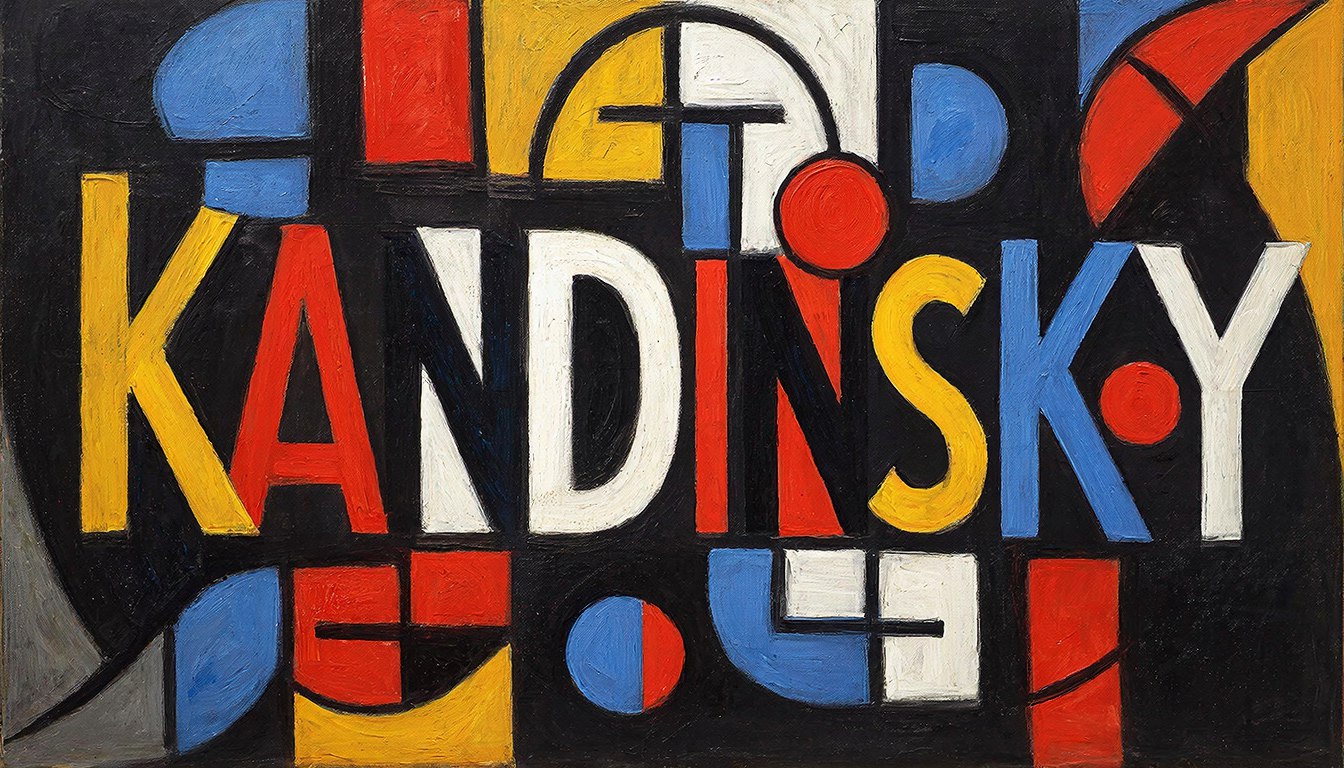
Kandinsky 5.0 is one of the most capable open AI models for creating high-quality, short-form videos. With strong motion consistency, advanced prompt understanding, and support for both text-to-video and image-to-video workflows, Kandinsky 5.0 is designed for creators who want speed, control, and visual realism without excessive complexity.
Where Can You Use Kandinsky 5.0?
There are three main ways to access Kandinsky 5.0:
GitHub (Local Deployment)
Running Kandinsky 5.0 locally viaGitHubprovides full control over models and parameters. However, it requires powerful GPUs, environment setup, and technical knowledge, making it less suitable for beginners.
ComfyUI Integration
Kandinsky 5.0 is compatible with ComfyUI, allowing node-based workflows and advanced customization. This option is powerful but requires installing the latest ComfyUI version and learning its interface.
Kandinsky AI Website (Recommended)
The Kandinsky AI generatoroffers the fastest and simplest experience. No local installation is required, you can generate AI videos directly in your browser. For most creators, this is the most efficient way to start using Kandinsky 5.0.
How to Use Kandinsky 5.0 Video Pro Step by Step
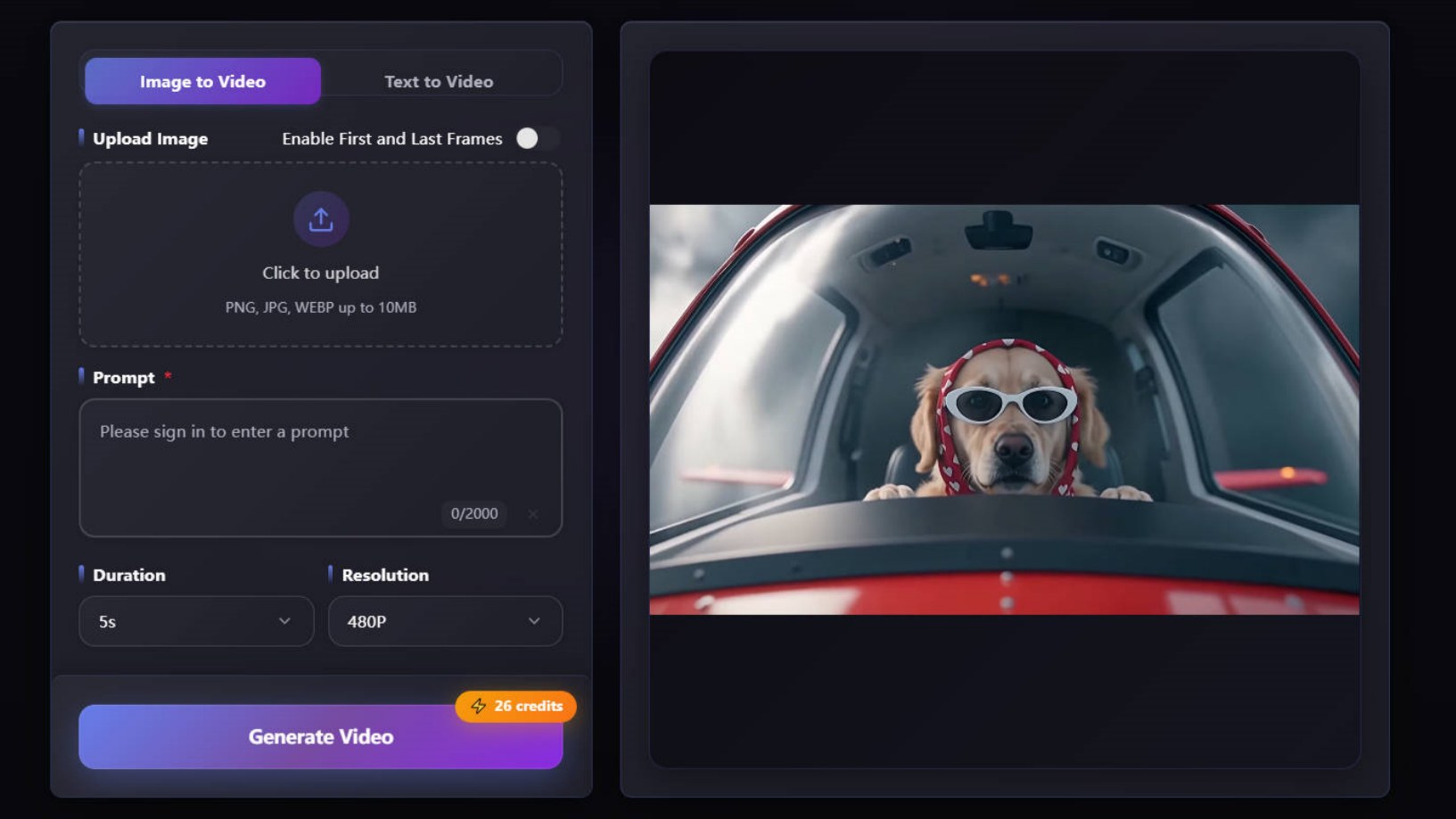
Image-to-Video Mode (I2V)
Image-to-Video is ideal when you want visual control and consistency.
Step 1: Upload Reference Images
Upload one reference image to guide the video style.
For stronger control, enable start and end frame mode and upload two images, one for the opening frame and one for the final frame. This helps shape transitions, motion direction, and narrative flow.
Step 2: Enter a Detailed Text Prompt
Kandinsky 5.0 supports professional-level prompts, allowing you to describe:
Camera movement (slow pan, dolly zoom, tracking shot)
Lighting (cinematic lighting, neon glow, soft daylight)
Motion behavior (smooth motion, dynamic acceleration)
Visual style (photorealistic, anime, sci-fi, fantasy)
The more precise the prompt, the more controlled and refined the video result.
Step 3: Choose Video Parameters
Duration: up to 12 seconds
Resolution: up to 1080p
Higher resolution delivers sharper details, while shorter durations often improve motion stability.
Text-to-Video Mode (T2V)
Text-to-Video is perfect for concept exploration and rapid iteration.
Step 1: Write a Comprehensive Prompt
Describe the scene, background atmosphere, characters, actions, and camera behavior in detail.
Example elements to include:
Environment (urban night, alien planet, desert landscape)
Characters (appearance, clothing, movement)
Action (walking, jumping, spinning, flying)
Mood (dramatic, calm, futuristic)
Rich descriptions help Kandinsky 5.0 generate coherent and visually engaging videos.
Step 2: Select Video Parameters
Choose vertical video for mobile platforms
Choose horizontal video for cinematic or YouTube formats
Set duration (up to 12 seconds) and resolution (up to 1080p)
How to Use Kandinsky 5.0 to Create Cross-Language Content
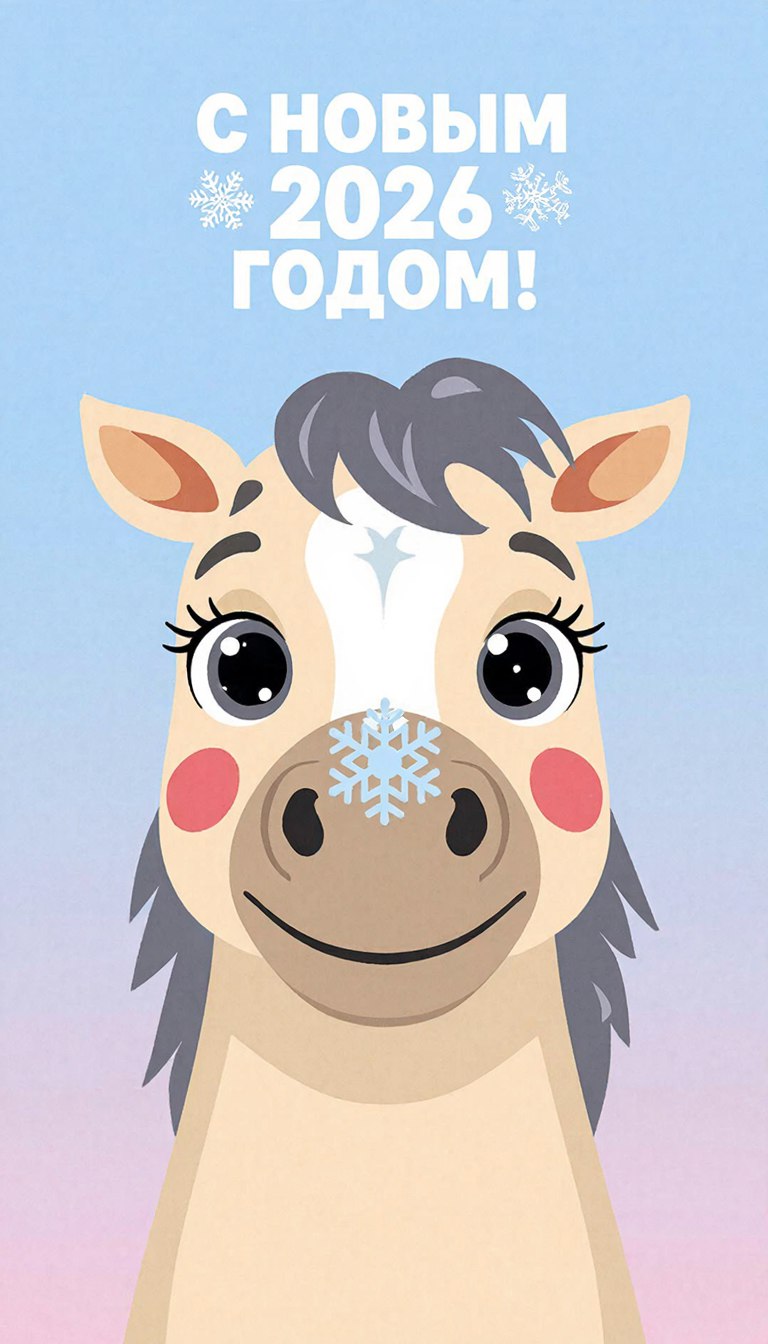
One of Kandinsky 5.0’s most powerful advantages is its multilingual understanding and generation.
The model can accurately interpret prompts in English, Russian, Chinese, and other languages, and can generate text elements using Latin and Cyrillic scripts with high fidelity.
Practical Use Cases
International Advertising. Kandinsky 5.0 enables quick localization of the same video by simply changing the prompt language. Brands can generate region-specific slogans in English, Russian, or Chinese while keeping visuals consistent.
Educational Content. The model supports multilingual text in images and videos, making it easy to create educational visuals with localized labels or captions for different audiences.
Global Branding. Teams can maintain a unified visual style across markets while adapting language-specific messaging, reducing manual redesign and production effort.
This dramatically reduces production costs for multilingual creative projects. You can localize the same visual content across regions using only prompt changes, no manual redesign required.
How to Use Kandinsky 5.0 to Create Short Videos for Social Media
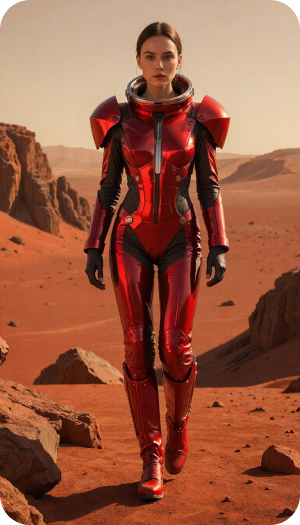
Kandinsky 5.0 supports vertical video generation, making it ideal for TikTok, Instagram Reels, and YouTube Shorts.
Thanks to Flow Matching (FM) and step distillation, the model can generate smooth, coherent motion at high speed, perfect for rapid iteration and A/B testing.
Short Video Examples
Realistic Style Videos. Creators can generate extreme sports clips such as skateboarding tricks, parkour jumps, or downhill biking, where fast camera movement and dynamic action feel natural and fluid.
It is also effective for urban motion scenes, including city walk-throughs, night street visuals, or handheld-style action shots, making it suitable for lifestyle and brand-driven content.Fantasy and Stylized Videos. For more imaginative content, Kandinsky 5.0 excels at creating fantasy and sci-fi short videos. Examples include surreal fashion runway shows set on alien planets, floating architectural environments, or futuristic cityscapes with dramatic lighting. These visually striking clips work well for creative storytelling and trend-driven social posts.
Short durations (5–8 seconds) often deliver the best balance between motion quality and visual clarity.
How to Use Kandinsky 5.0 to Create Cinematic and Film-Style Clips
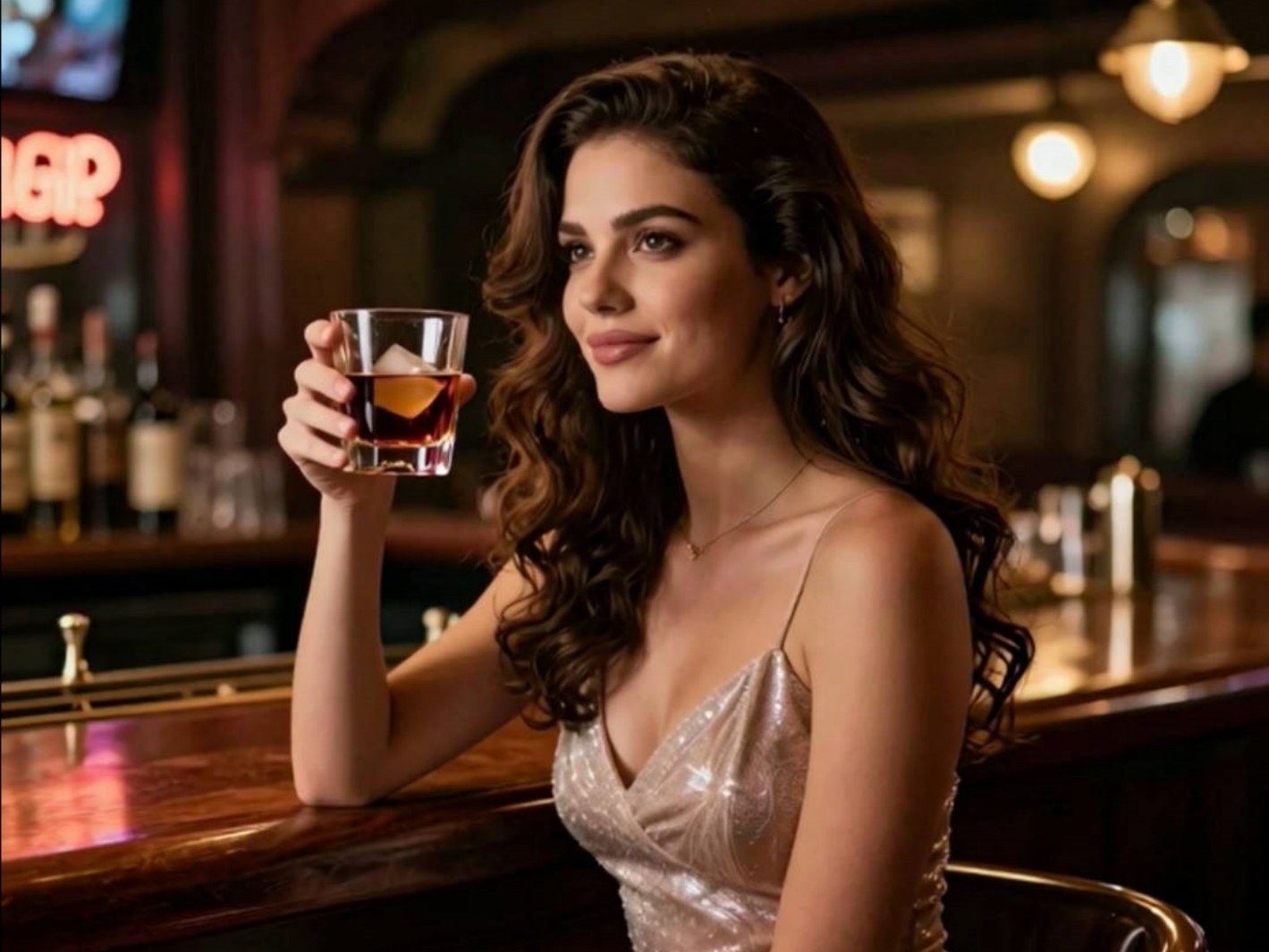
Kandinsky 5.0 shows significant improvements in:
Motion realism
Visual fidelity
Artifact suppression
Semantic accuracy
Through self-supervised fine-tuning (SFT) and reinforcement learning (RL) post-training, the model achieves strong temporal coherence and more realistic physical motion.
Ideal Applications
Film Storyboards and Pre-Visualization. Kandinsky 5.0 enables rapid creation of short cinematic clips for storyboards and pre-visualization. By specifying camera movement, lighting, and mood in prompts, creators can quickly test shot composition, pacing, and visual tone before production.
Game Cinematic Cutscenes. For game development, Kandinsky 5.0 helps prototype cinematic cutscenes and narrative moments. Stable motion and consistent framing make it useful for visualizing character actions, scene transitions, and environmental atmosphere in story-driven sequences.
Concept Trailers and Mood Reels. Kandinsky 5.0 is ideal for generating concept trailers and mood reels used in pitches and early presentations. Creators can communicate style, genre, and emotional direction without the cost of full-scale production.
Creators can rapidly test scene ideas before investing in full production pipelines.
Kandinsky 5.0 Practical Tips for Better Results
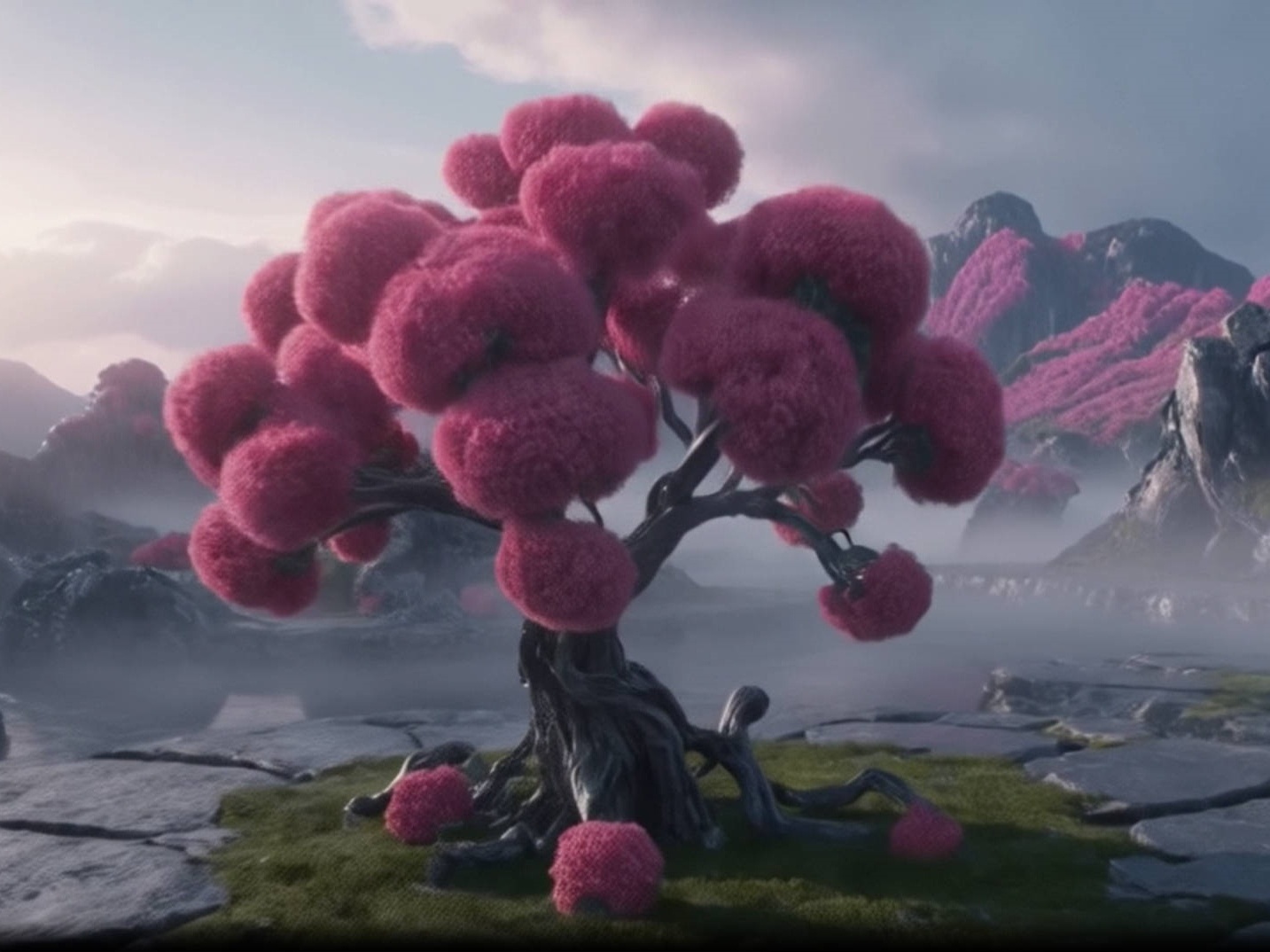
Use cinematic language (camera angles, lens effects, lighting terms)
Keep prompts focused, avoid overloading unrelated details
Choose shorter durations to emphasize key motion
Use high-quality reference images for image-to-video
Iterate quickly and refine prompts based on results
To get the best results with Kandinsky 5.0, focus on clear creative intent, high-quality reference images, and well-structured prompts. Whether you’re producing short social videos, multilingual content, or cinematic concepts, Kandinsky 5.0 allows you to create visually striking AI videos faster than ever.
Try Kandinsky 5.0 Video Pro, experiment with prompts, and refine your workflow. Feel free to share feedback as you explore what Kandinsky 5.0 can do.